Price Calculator
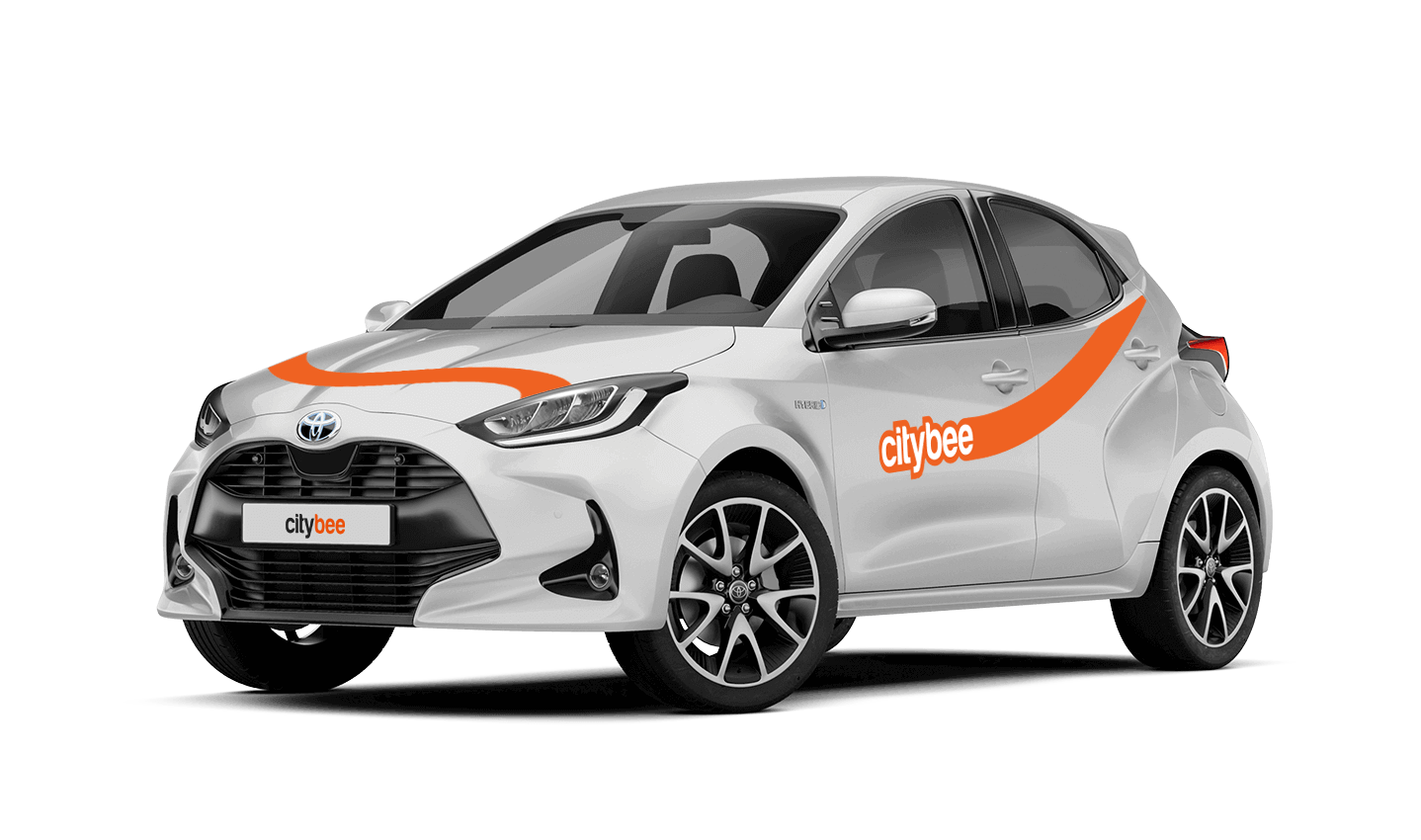
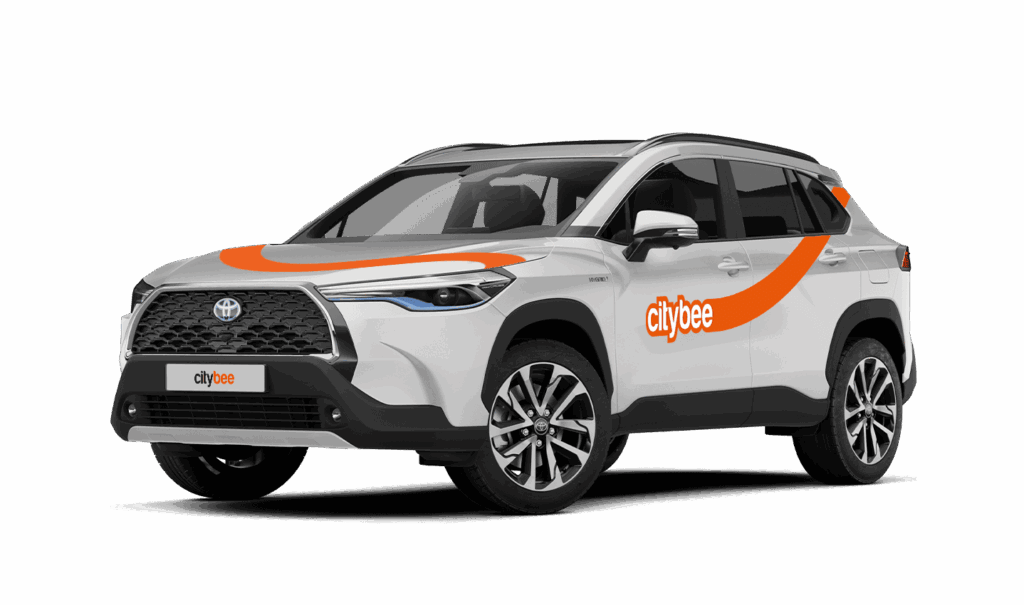
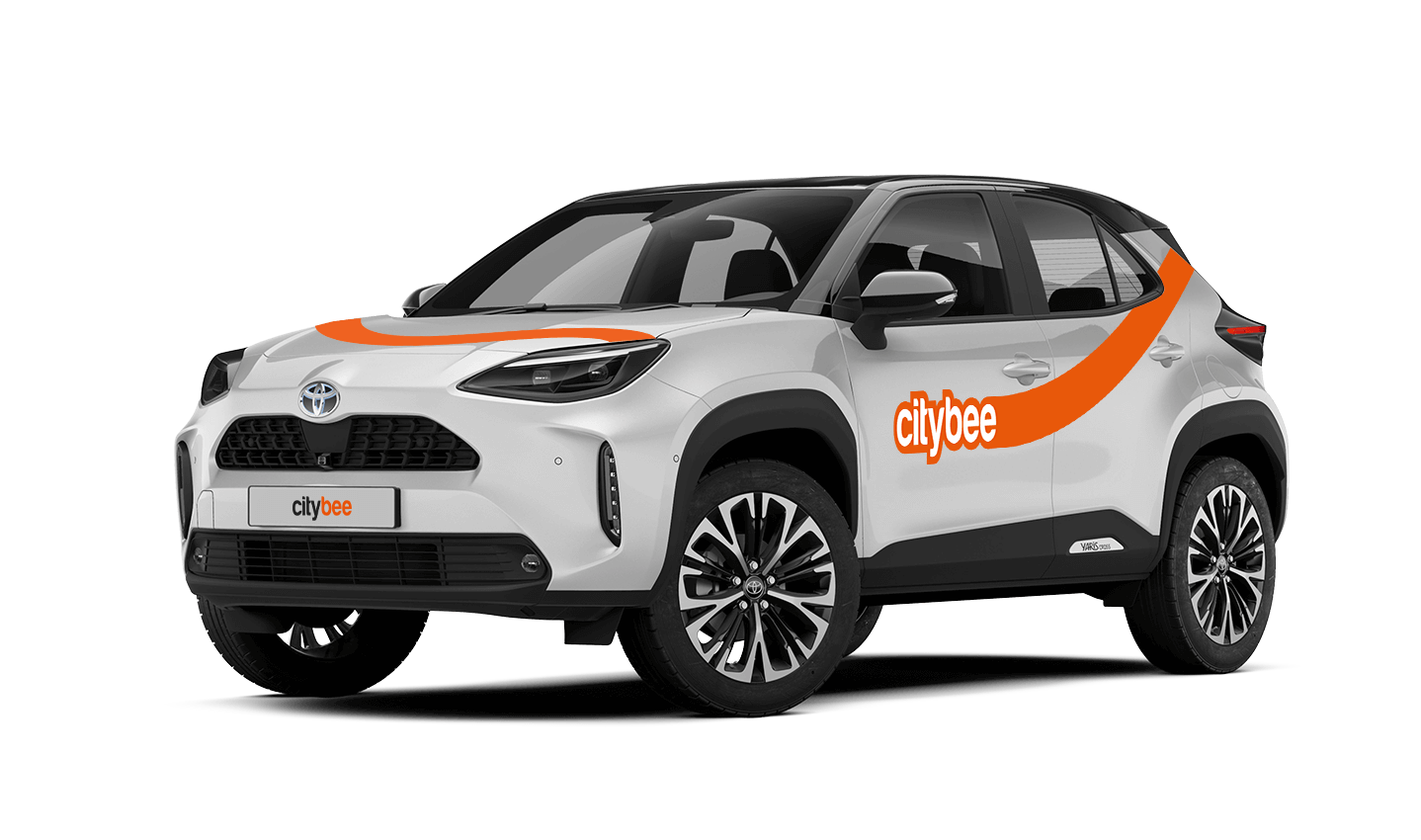
Toyota Yaris Cross
The price of this journey would be
0€
Trip start fee of 0.49€ is included in the price calculation.
Vans have their own parking zones, which are different from the ones for cars. Just tap the van icon in the app to see where you can go. The color-coding works the same way you’re used to:
– Clear zones – Park or end your trip here anytime, as long as you follow regular parking rules
– Yellow zones – These might add a small fee or give you a discount when you start or finish a trip. Tap the € symbol to check the exact amount for that zone
– Grey zones – No ending trips here, sorry!
The good news? You don’t have to bring the van back to where you picked it up. Any allowed van zone works.
One thing to keep in mind: Electric vans have their own special zones. If you plan to drive an electric van, make sure to select it in the app, that way you’ll only see their specific zones.
For more details on parking zones, see our guide here.
The plan is activated on the day of purchase. You will receive an email notification confirming the activation immediately after the purchase.
You can change your email address in the mobile app.
Select Menu – My profile – E-mail address – Replace the previous e-mail address with a new one.
You will receive an email at the new address with a confirmation link. You will need to click it to confirm the new email address.
Before you hit the road, we’d love for you to do a quick check to make sure the car is roadworthy. If you notice anything that might make it unsafe or unsuitable to drive, just let us know through the CityBee app. This simple check helps keep our cars in great shape and ensures a smooth, safe ride for you!
If you contact us by phone, calling from a phone number that you haven’t registered in your CityBee profile, we will verify your identity by asking you to provide your profile or other information known only by you.
As part of this check, we can send a verification code (SMS or e-mail) to the registered phone number or e-mail address, asking you to provide the verification code.
If the verification doesn’t work, we cannot continue providing assistance.
Please note that when calling from the registered phone number some additional identification questions may be asked.
All publicly available information will be provided to any caller without verification.
Due to company policy, we are able to provide our services to customers who have Drivers licenses issued from one of these countries listed below.
If your country is not on the list – unfortunately, you will not be able to register.
Also, our system is unable to accept International Driver’s Permits/ Licenses.
|
Australia |
|
Austria |
|
Belarus |
|
Belgium |
|
Bulgaria |
|
Canada |
|
Croatia |
|
Cyprus |
|
Czech Republic |
|
Denmark |
|
Egypt |
|
Estonia |
|
Finland |
|
France |
|
Georgia |
|
Germany |
|
Greece |
|
Hungary |
|
Iceland |
|
Ireland |
|
Isle of Man |
|
Israel |
|
Italy |
|
Latvia |
|
Liechtenstein |
|
Lithuania |
|
Luxembourg |
|
Malta |
|
Netherlands |
|
Norway |
|
Poland |
|
Portugal |
|
Romania |
|
Russia |
|
San Marino |
|
Slovakia |
|
Slovenia |
|
Spain |
|
Sweden |
|
Switzerland |
|
Turkey |
|
Ukraine |
|
United Kingdom |
|
United States of America |
The subscription is ideal for anyone who regularly takes shorter trips (up to 5 km and 15 minutes) in the city with CityBee. Whether it’s just a few times or several trips a month, choose a subscription plan that fits your travel needs, save money, and enjoy additional benefits. However, if you typically take longer trips, we recommend selecting from a variety of trip packages that offer more cost-effective options for longer routes.
Parking in private paid lots is allowed, but you will need to cover the parking cost yourself.
For more details on parking zones, see our guide here.
Additionally, regardless of whether the area is shown in the app as a free parking zone (transparent) or a paid parking zone (yellow), customers must always comply with local traffic regulations, road signs, supplementary signs, and any other parking restrictions in force.
Before ending your reservation, always make sure that parking is permitted in the selected location.
The price of this journey would be
0€
Trip start fee of 0.49€ is included in the price calculation.