Price Calculator
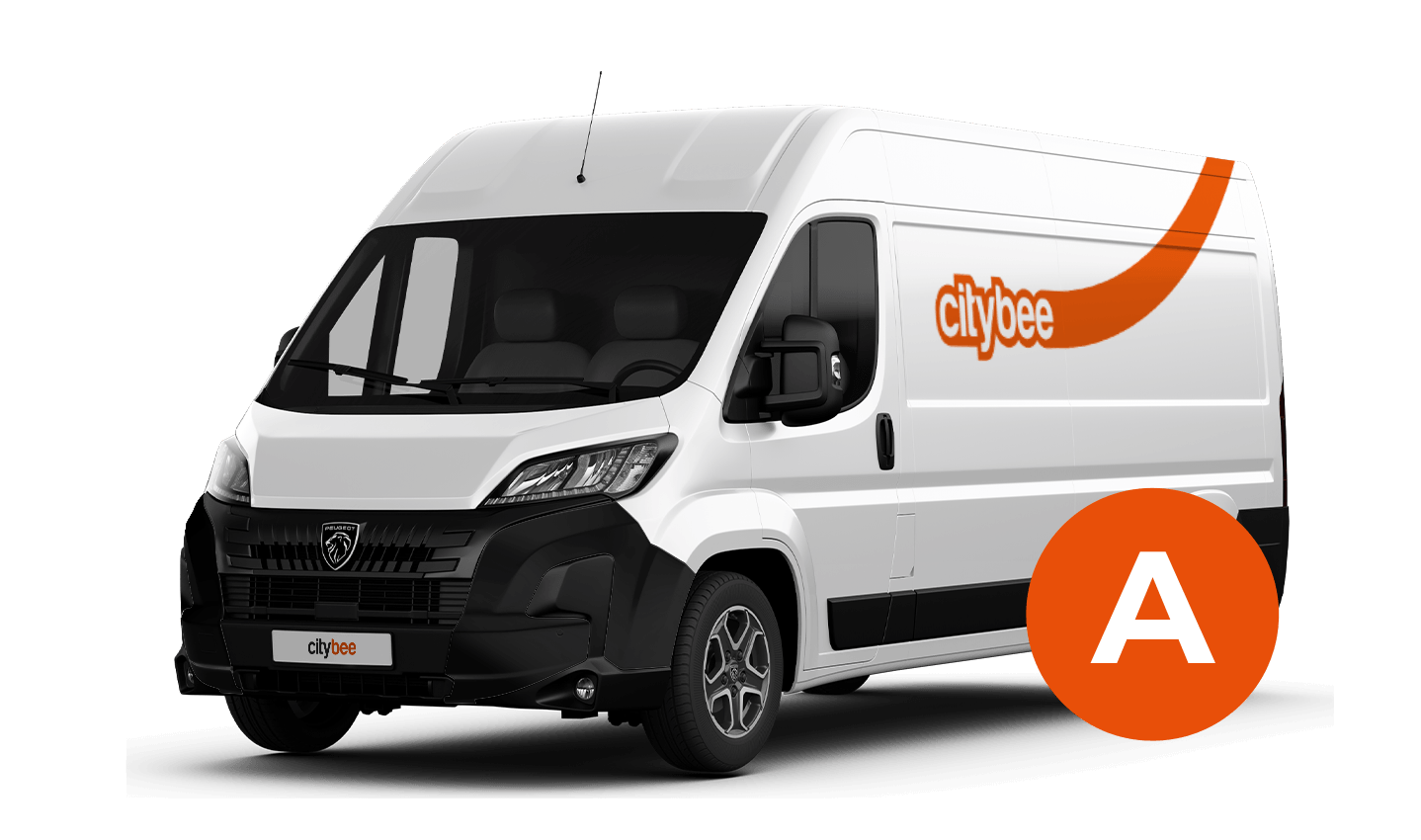
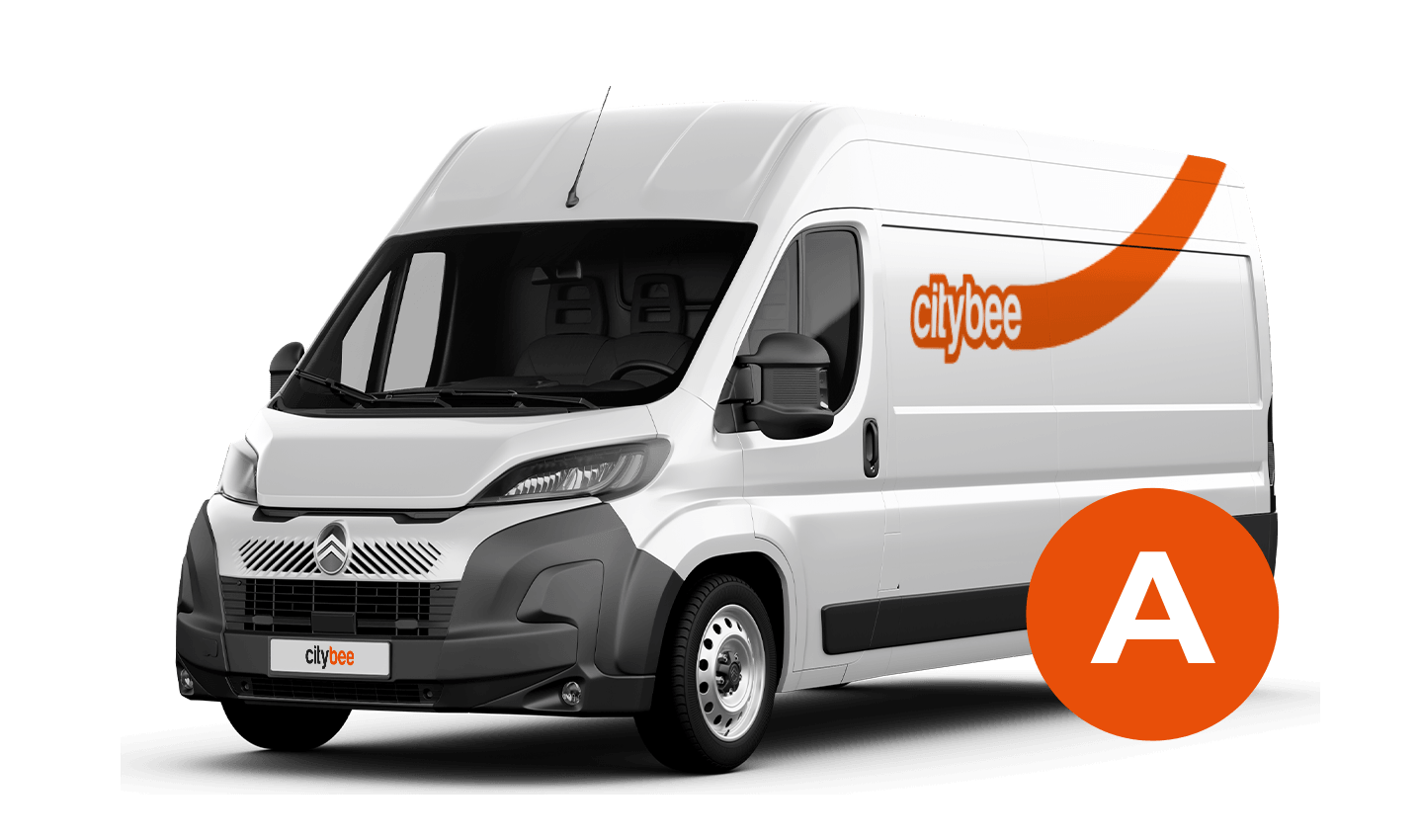
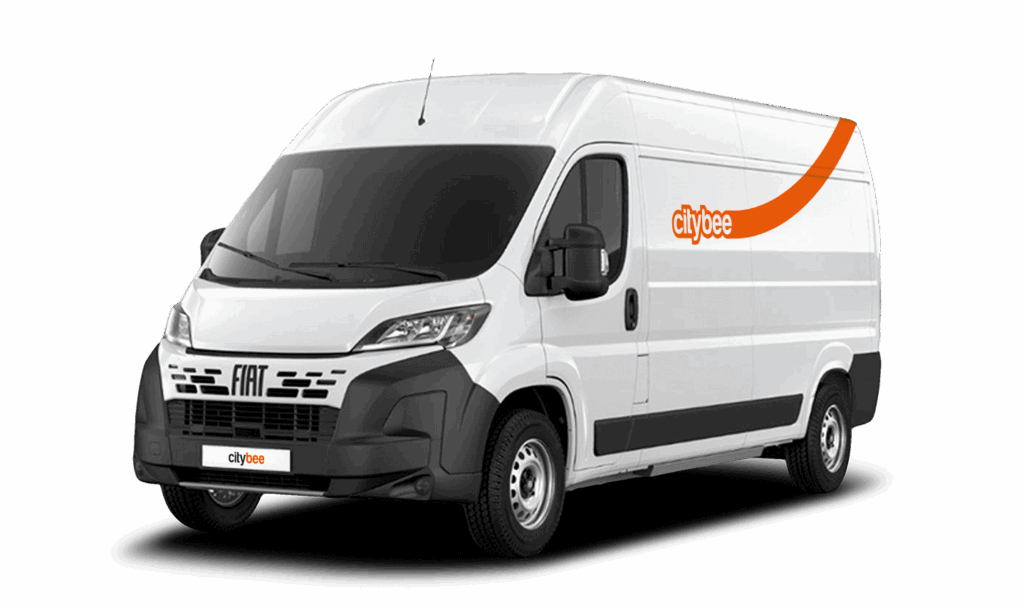
Fiat Ducato
The price of this journey would be
0€
Trip start fee of 0.49€ is included in the price calculation.
BeeChill fee can cover accidental interior damage, as long as the damage wasn’t intentional, and you inform us about the incident right away. We understand that accidents happen, and we’re here to help.
However, the BeeChill fee does not cover the damages caused by things like smoking, excessive trash, or spills that require dry cleaning. For these situations, a cleaning fee will apply. For more details, please check our Pricelist.
If you refuel at a station other than Circle K, we’ll refund the cost of the fuel. To request a refund, make sure to save the receipt and follow the process described here.
Please note that we cannot process receipts older than 3 months.
To change the CityBee self-service password, click on “I forgot/want to change my password” on the website . Once you’ve done that, enter your email address linked with your CityBee account in the box that appears. An email will be sent to your inbox with instructions explaining how to change your password.
Lithuania self – service: https://selfservice.citybee.lt/#/login;
Latvia self-service: https://selfservice.citybee.lv/;
Estonia self-service: https://selfservice.citybee.ee/.
CityBee subscription plan is valid for 30 days from the date of purchase. Unused trips do not carry over to a new plan.
Please note that we do not process refunds older than 3 months. e.g. If you have filled up at a non Circle-K petrol station, the fuel receipt cannot be older than 3 months when you apply for a refund.
If you exceed the maximum allotted time or distance during a trip, standard CityBee per-minute and per-kilometer rates will apply according to the ‘Flexible’ pricing for the selected car model. Immediately after your trip, you will receive an invoice via email detailing the additional charges for extra kilometers and/or minutes. This amount will be charged to the payment card linked to your CityBee account.
If, for any reason, the additional charges cannot be deducted from your payment card and a debt is incurred, you will not be able to start a new trip until the outstanding balance is settled.
Due to company policy, we are able to provide our services to customers who have Drivers licenses issued from one of these countries listed below.
If your country is not on the list – unfortunately, you will not be able to register.
Also, our system is unable to accept International Driver’s Permits/ Licenses.
|
Australia |
|
Austria |
|
Belarus |
|
Belgium |
|
Bulgaria |
|
Canada |
|
Croatia |
|
Cyprus |
|
Czech Republic |
|
Denmark |
|
Egypt |
|
Estonia |
|
Finland |
|
France |
|
Georgia |
|
Germany |
|
Greece |
|
Hungary |
|
Iceland |
|
Ireland |
|
Isle of Man |
|
Israel |
|
Italy |
|
Latvia |
|
Liechtenstein |
|
Lithuania |
|
Luxembourg |
|
Malta |
|
Netherlands |
|
Norway |
|
Poland |
|
Portugal |
|
Romania |
|
Russia |
|
San Marino |
|
Slovakia |
|
Slovenia |
|
Spain |
|
Sweden |
|
Switzerland |
|
Turkey |
|
Ukraine |
|
United Kingdom |
|
United States of America |
When using CityBee, you don’t have to pay for fuel yourself – you only pay for the time and kilometers you drive.
Refueling is easy!
Go to any of our partner Circle K gas stations. Open the CityBee app and start the refueling. Follow the simple instructions, fill up, and hit the road!
If the fuel is below 1/4 of the tank, you’ll receive a €2 discount for topping up.
Step by Step refueling guide
Check the Reservation map in the app to see nearby fuel stations. Tap a station for details and directions, then drive there.
When you arrive, tap the notification or open the CityBee app, go to Reservation, and select Refuel.
The app shows available pumps. Pick your pump, activate it, and wait for confirmation.
When it says, “Ready to fuel,” pick up the nozzle and start fueling. Return the nozzle when finished. The app will update the fueling status automatically.
If you decide not to refuel, you can cancel in two ways:
Manual cancel: Pick up the nozzle and immediately return it – the refueling is canceled.
Automatic cancel: If the nozzle is never picked up, the app will automatically cancel the refueling after 2 minutes of inactivity.
In rare cases, you may need to use the fuel card inside the car. This happens if the pump doesn’t work via the app or if you’re refueling outside the Baltic States. The CityBee app shows the PIN code and fuel type under your active reservation.
The price of this journey would be
0€
Trip start fee of 0.49€ is included in the price calculation.