Price Calculator
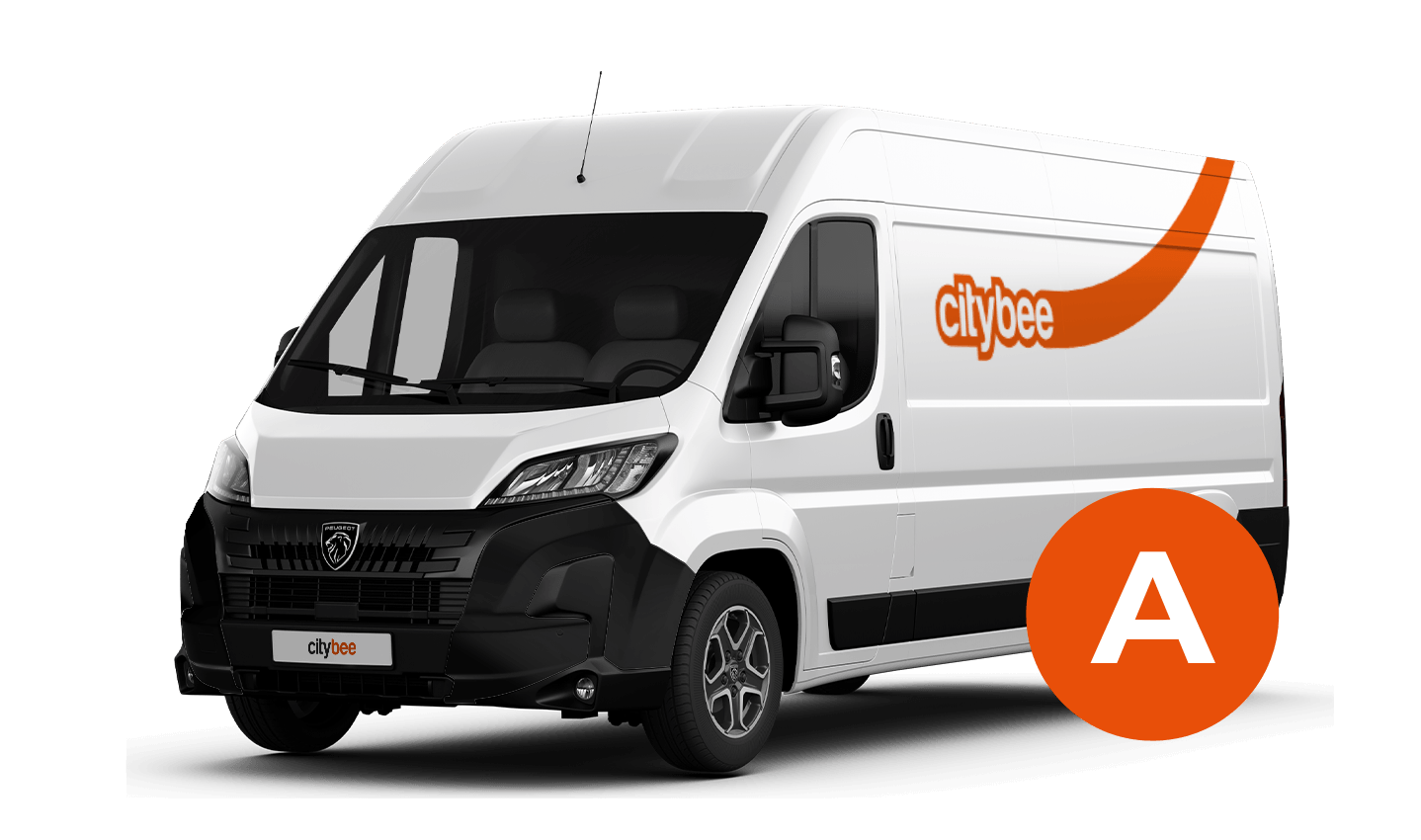
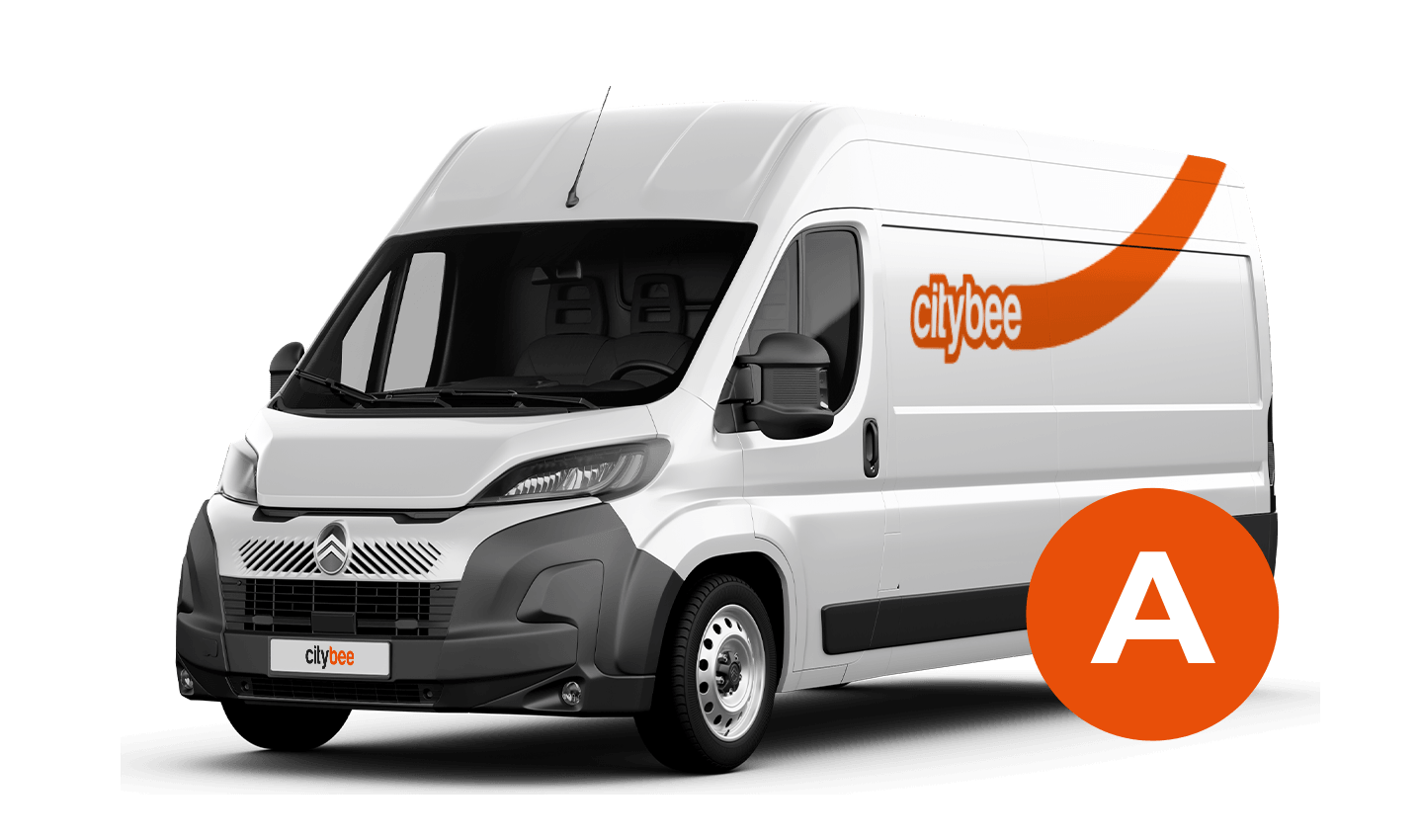
Citroen Jumper
The price of this journey would be
0€
Trip start fee of 0.49€ is included in the price calculation.
During the process of drivers license approval, sometimes the system will ask you to join a video call.
You will receive a link to this call via SMS and e-mail. After receiving this link, please click on it and join the video call during these hours – 8:00-00:00.
If you do not join the video call within 7 days, the driver’s license will not be successfully approved.
You will receive an email notification after each trip made with your CityBee subscription plan, informing you of the remaining trips. You can also view your remaining trips in the CityBee app by selecting the desired car for your trip.
All CityBee subscription plans are valid for 30 days from the date of purchase. If you do not use all the trips included in the plan within this period, the plan will not be automatically renewed, and no refunds will be given for unused trips.
If you want to change your phone number in the CityBee app, please follow these steps:
Menu > My profile > Phone number. Specify the new phone number and enter the verification code, which you will receive as an SMS to the new phone number.
If you want to change the phone number registered in the CityBee app, but cannot access your profile in the app, please send us a request by e-mail, using the e-mail address you specified in your CityBee profile, and indicate your new phone number. We will change it upon request.
If you are unable to access the email inbox associated with your account, kindly get in touch with our customer support team for further assistance.
Attention! To protect Your account and to prevent fraud, while changing the phone number, we will remove Your driver‘s license and all Your attached payment cards. Add Your driver‘s license and payment card and You will be able to use the services again.
Email for contacting (for Citybee Lithuania customers): info@citybee.lt;
Email for contacting (for Citybee Latvia customers): info@citybee.lv;
Email for contacting (for Citybee Estonia customers): info@citybee.ee.
Vans have their own parking zones, which are different from the ones for cars. Just tap the van icon in the app to see where you can go. The color-coding works the same way you’re used to:
– Clear zones – Park or end your trip here anytime, as long as you follow regular parking rules
– Yellow zones – These might add a small fee or give you a discount when you start or finish a trip. Tap the € symbol to check the exact amount for that zone
– Grey zones – No ending trips here, sorry!
The good news? You don’t have to bring the van back to where you picked it up. Any allowed van zone works.
One thing to keep in mind: Electric vans have their own special zones. If you plan to drive an electric van, make sure to select it in the app, that way you’ll only see their specific zones.
For more details on parking zones, see our guide here.
Park the car in ‘CityBee’ zone when you’re finished. All zones are shown on the app map. For more details on parking zones, see our guide here.
Before you hop out, do a quick check:
– Grabbed all your stuff
– Car documents and accessories still in the car
– Key back where you found it (or somewhere the next person will easily spot it)
– Windows and sunroof closed
Then just open your active trip in the app, hit ‘End trip’, and confirm. Make sure the doors actually lock. You’ll get a confirmation.
Left something behind?
No worries. You can unlock the car once for free to grab your things. Find out more about retrieving lost items here.
Yes, you can. The CityBee Privacy Policy provides detailed information on the purpose of processing your personal data and the duration of storage thereof.
At least one payment card must be linked to a CityBee account. You can link more than one payment card and choose from which card you will be billed for services before each trip. It is important that the card type is VISA or MasterCard and that the secure internet shopping function is activated.
How do I activate the secure internet shopping function?
1. SEB: Log in to your internet bank and look for “Accounts and Cards” -> “Card List” in the menu bar at the top. You’ll see all of your cards that can be registered with the secure internet shopping programme. Next to the desired card in the options below, click on “Online Billing” and click “Enable”.
2. Swedbank: Log in to your internet bank and look for “Cards” -> “Secure internet shopping” in the menu bar on the left. You’ll see all of your cards that can be registered with the secure internet shopping programme. Select the desired card next to the note “Online Billing” and click “Enable”.
3. Šiaulių Bankas: Log in to your Internet bank and in the menu on the left, select “Cards” -> “Secure payment” -> select the payment card for which you want to activate the secure internet shopping and click “Register” -> enter the requested data and confirm it by pressing the “Enter and Sign” button -> soon the status of the card will change to “Registered”.
4. Luminor bank: Log in to your Internet bank and in the menu, select the item “Payment cards” -> select the payment card for which you want to activate the secure internet shopping and in the opened window click “Secure shopping service settings” -> select the “Order service” button -> enter the requested data, which the bank will show you later during the purchase -> click “Order service”.
5. Citadele bank: No additional activation of the secure internet shopping is required.
The price of this journey would be
0€
Trip start fee of 0.49€ is included in the price calculation.